PLDROID
Replace your old Piccolink device with Android and ensure the continuity of your business.
How to try out PLDroid
Install the app
Download and install PLDroid from Google Play. The app works on Android 8.0 and newer.
Start the trial
Open the app and press "Try the Trial". You get a free trial period to test how the app works.
Configure the connection settings
Set the host address and port number in the connection settings.
Return to the main menu
Press "Back" to return to the main menu.
Connect
Press "OK" to connect to the server. The app is now ready to use.
Test server: We understand it can sometimes be hard to reach your production app with PLDroid for evaluation purposes. You can try out PLDroid by connecting to our test server at demo.droidoro.ee:2424.
There are multiple forms inside the test server. Most fields just return the entered data back as a PopMessage.
If you cannot use Google Play, contact us — we will provide a trial license for the APK version. Contact us.
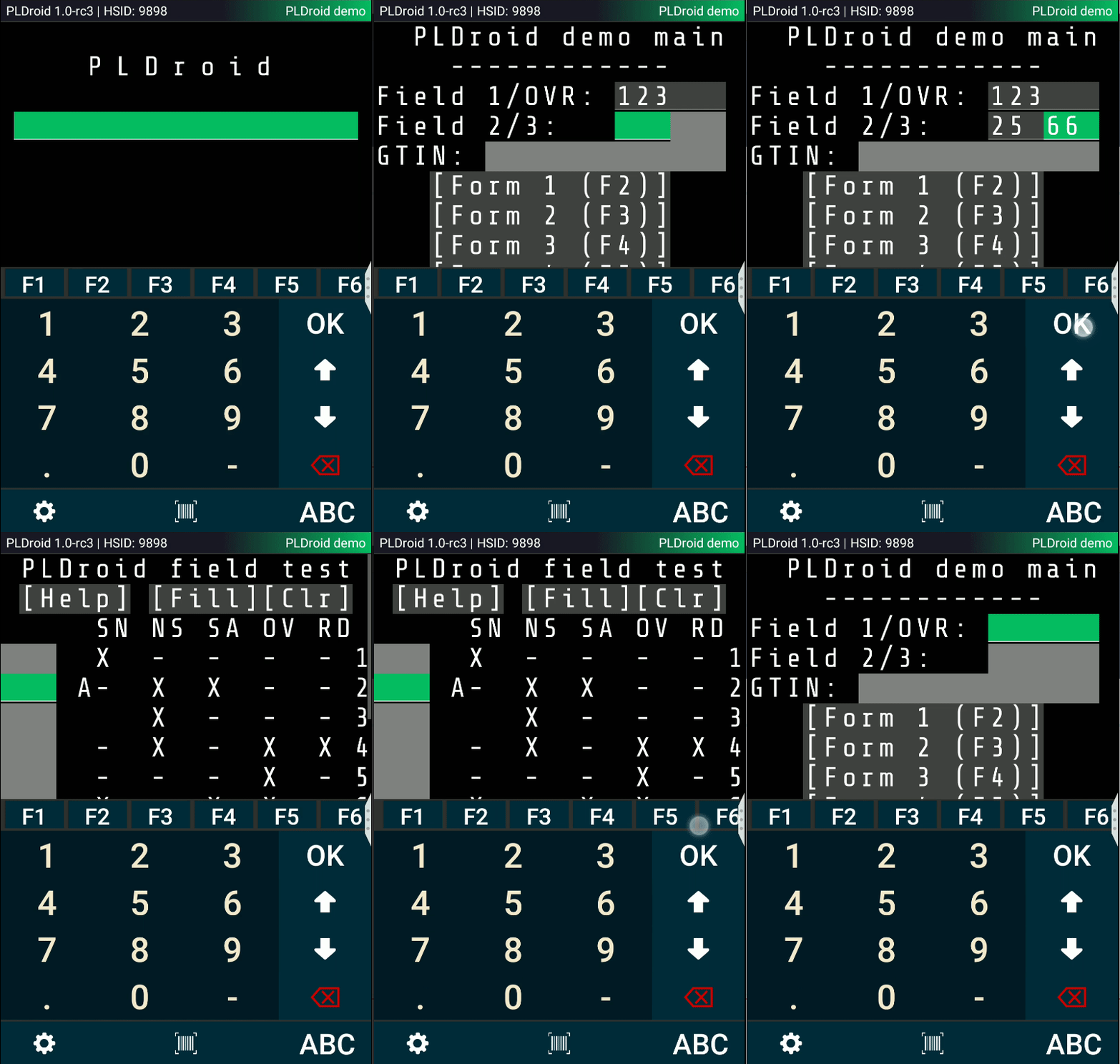
The app in action:
How this works
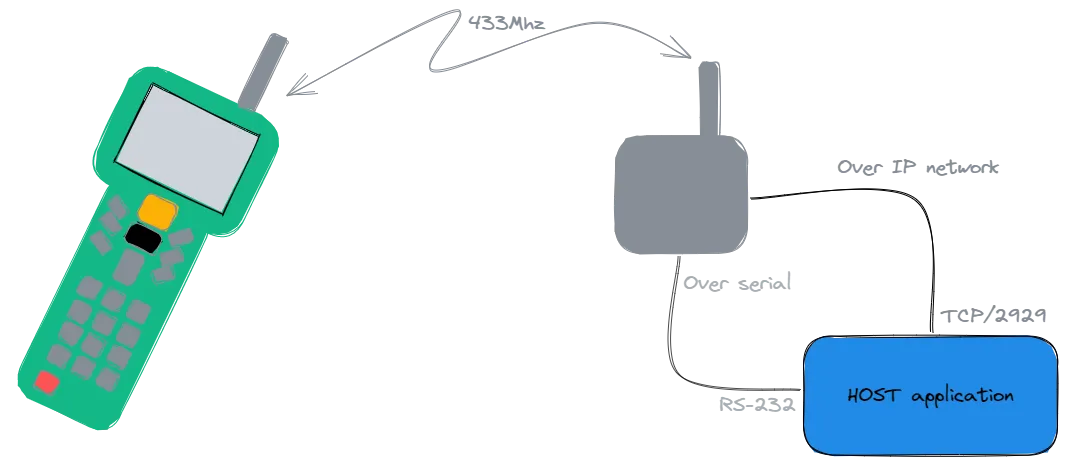
You probably have Piccolink devices installed in your environment at the moment. It most likely looks something like this.
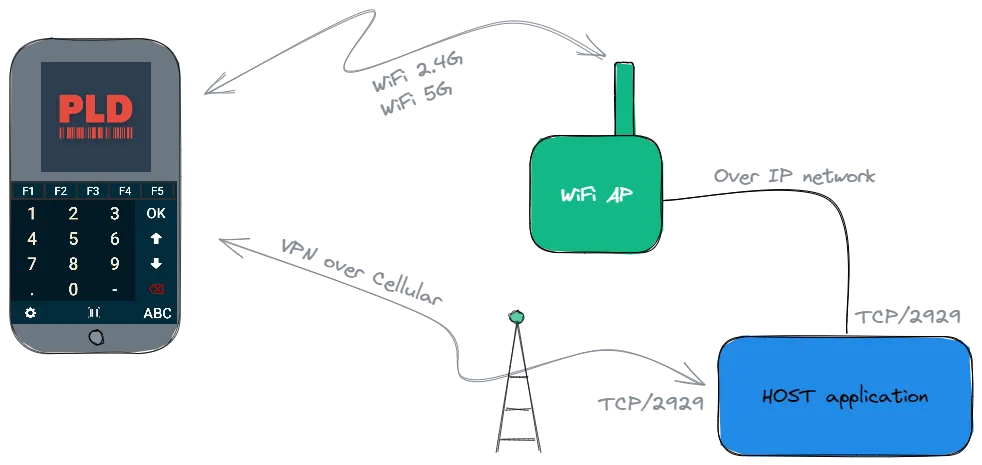
When you replace your Piccolink devices with PLDroid, it will look like this.
In practice, you just have to get an Android device into the same network where your host application resides, install PLDroid, and define the host and port — and you are ready to go.
You can also keep using your Piccolink devices alongside: the host application sees PLDroid just like any other Piccolink device.
Serial port emulation
If your host application supports only serial port connections, you can handle it via a software solution:
- Download and install Eterlogic VSPE
- Open the "Virtual Serial Ports Emulator" application
- First create a new Connector device: Device → Create..
- Device type: Connector, click Next
- Select a virtual serial port, e.g. COM5, and then click Finish
- Then create a new TcpServer device: Device → Create..
- Device type: TcpServer, click Next
- Local TCP port can be the default 5555, then select Source serial port COM5 and click Finish
- Finally, click the "Play" button, which starts the emulation
Now change your host application to listen to COM port 5 and connect PLDroid to the workstation IP address, port 5555.
To run VSPE automatically, you can find instructions under Help → Help → Usage tips → Autorun.
Note: VSPE needs a one-time-fee license ($24.95 + VAT) per host application.
Features
Our app tries to behave like a Piccolink device. On steroids.
Android 8+
PLDroid works on all Android devices running version 8.0 or newer. If you have older devices, we still might be able to support those — please contact us.
Multiple connection profiles
You can create multiple connection profiles for different servers and switch between them easily in the app settings.
Loud beep / silent
A successful barcode read produces a beep. If you prefer, you can turn the sound off completely.
Key mapping
The device's hardware keys can be mapped to specific Piccolink keys, e.g. Volume Down → F8. A familiar user experience without compromises.
QR settings
Connection settings can be read with a QR code. Easy deployment to multiple devices at once — scan and you are ready.
Camera barcode reading
Quick barcode reading via the device camera — with redundancy to prevent mis-reads and optional flash control.
Integrated / BT reader
Full support for device-integrated barcode readers as well as Bluetooth-connected readers.
Enlargeable numpad
Enlarge the numpad by swiping the bottom row away (swipe from the - (dash) or . (period) buttons).
Security
What does PLDroid connect to?
In normal usage, PLDroid connects only to your defined host (application server, PLServer). The protocol itself is not encrypted, so the connection should be secured somehow, e.g. with secure WiFi or a VPN. An unsecured connection over a public network is technically possible, but should not be used.
How does license activation work?
When the app is installed from an APK, it activates the license code from our servers over a secure HTTPS connection to license.droidoro.ee. This is only done once per device install. If your security policy prevents this, we can work out alternative methods — contact us.
What information does PLDroid send to us?
After license activation, the app sends information to us only in three cases:
- when the user requests log sending (Settings → Send logs)
- when the app crashes unexpectedly
- when the user requests license de-activation.
Logs include only PLDroid-specific log data, and they are sent via secure HTTPS to crash-reporting.droidoro.ee. If preferred, you can also host the log server locally.
Does the app work in a closed network?
Yes. After license activation, the app works perfectly even if all external connections are blocked. The app only needs a healthy connection to your application server.
Downloads
AppId: ee.droidoro.pldroid
The APK version requires a license code. Contact us to get a trial license.
Pricing
Single license
200 €
/ license
- Full functionality on one device
- Free software updates
- Email support
Custom licensing
Contact us
For larger deployments
- Multiple licenses at a discounted price
- Tailored deployment
- Priority support
Contact
Tavoitat meidät parhaiten sähköpostilla. Vastaamme yhteydenottoihin mahdollisimman pian.
Send message
Fill out the form below and we will get back to you shortly.